Dubai-based founder building the next generation of tax software for global businesses. I started in the world of accounting and finance, built a successful tax and advisory firm (Alpha Pro Partners), and then turned those real-world pain points into a product: Tax Star, an AI-powered platform designed to make tax filing simpler, faster, and more accurate.
Migrating from QuickBooks to Xero: Complete UAE Guide

August 2, 2026


Content
Switching accounting systems can feel risky, especially when daily transactions, invoices, and tax records all depend on clean data. Many UAE businesses are now moving from QuickBooks Online to Xero because it’s simpler, faster, and built for cloud automation.
This guide explains how migration works from start to finish, what to prepare, how to move data safely, and what to expect once the switch is complete.
Why Many UAE Businesses Are Moving to Xero
QuickBooks Online remains popular worldwide, but Xero has become the preferred platform for SMEs in Dubai and across the region. The reason is flexibility.
Xero integrates more smoothly with local payment gateways, multi-currency banking, and UAE tax rules. It also connects better with point-of-sale, payroll, and e-commerce systems used by regional companies.
Key advantages include:
- Real-time bank feeds for UAE banks.
- Integrated VAT and corporate-tax tracking.
- Easier collaboration between accountants and business owners.
- Clear dashboards and automation features.
- Reliable cloud performance and data security.
Many firms decide to switch once they reach the stage where manual imports, duplicate data, and VAT mismatches start causing delays.

Step 1: Plan Before Migration
A smooth migration begins with planning. Rushing the process is the most common cause of missing data and reconciliation errors.
1. Set a Migration Date
Pick the start of a new financial month or quarter. This keeps opening balances accurate and simplifies VAT reporting.
2. Close QuickBooks Entries
Reconcile all bank accounts, mark unpaid invoices, and verify that VAT returns up to the migration date are submitted.
3. Export Key Data
Download reports and lists from QuickBooks, including:
- Chart of Accounts
- Customers and Suppliers
- Outstanding Invoices and Bills
- Trial Balance
- Bank Reconciliation Statements
Save them in Excel or CSV format.
4. Check VAT Codes
QuickBooks VAT codes often differ from Xero’s structure. Review each code to ensure 5 % domestic sales and 0 % exports are mapped correctly before import.
Step 2: Prepare Xero for Import
Once QuickBooks data is clean, set up Xero to receive it.
1. Create Organisation Settings
Add company name, trade licence number, and financial year-end dates to match previous records.
2. Set Up Chart of Accounts
Xero provides a default chart, but it’s better to upload your existing one to maintain consistency for tax filing.
3. Add Tax Settings
Set up VAT periods (monthly or quarterly) and link the correct FTA VAT number. Check that default codes apply 5 % VAT for UAE sales and 0 % for exports.
4. Connect Bank Feeds
Xero connects directly to major UAE banks such as Emirates NBD, Mashreq, and ADIB. Turning on feeds early ensures automatic imports start the moment live transactions resume.
Step 3: Import Core Data
The next step is transferring lists and balances.
Customers and Suppliers
Import via CSV files or migration tools. Keep email addresses and VAT numbers accurate for future invoices.
Chart of Accounts
Upload through Settings → Chart of Accounts. If any QuickBooks codes use restricted characters, edit them before upload.
Opening Balances
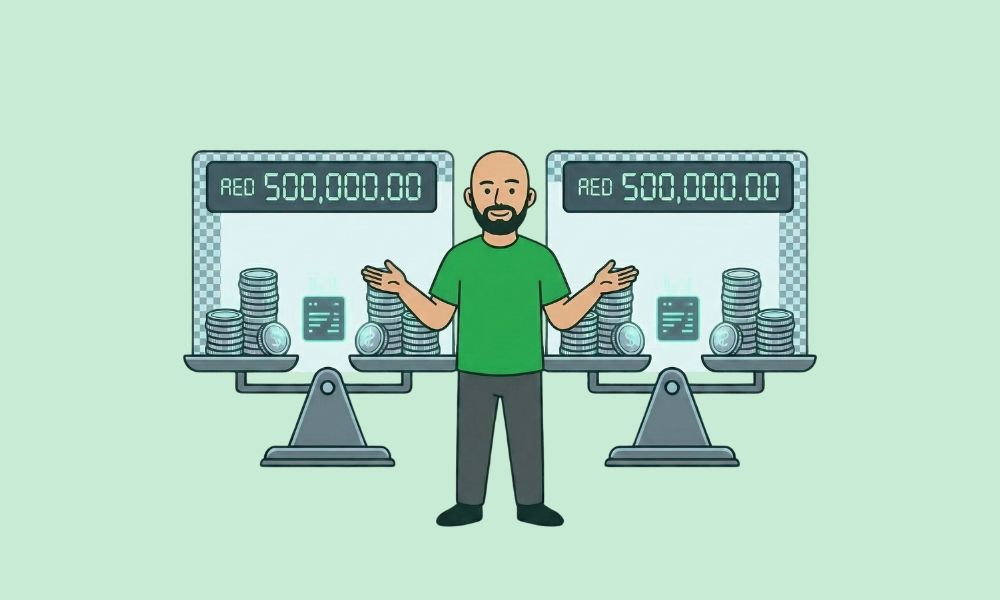
Enter balances as of the migration date from the QuickBooks trial balance. This keeps P&L and Balance Sheet continuity.
Outstanding Invoices and Bills
Upload all unpaid invoices and bills individually with correct VAT treatment. Once imported, they appear under “Awaiting Payment.”
Example:
A Dubai consultancy migrates on 1 April 2025. Invoices issued in March remain open in Xero with correct VAT dates, ensuring the next return captures them automatically.
Step 4: Verify Accuracy
After import, run checks to confirm balances match.
Bank Reconciliation Check
Compare the bank balance in Xero to the final QuickBooks statement. Any small difference should be investigated immediately.
Trial Balance Check
Run a trial balance in both systems for the same date. Every account should match line by line.
VAT Control Account Check
Ensure the closing VAT liability from QuickBooks matches the opening balance in Xero’s VAT control account.
Contact and Invoice Check
Open random customer profiles to verify outstanding invoices, due dates, and VAT rates.
Step 5: Recreate Automations and Integrations
Migration is the perfect time to improve efficiency. Reconnect the tools you used before or add better ones.
Typical integrations for UAE businesses:
- Stripe or PayTabs for online payments.
- DEAR or Unleashed for inventory.
- Hubstaff or WorkflowMax for time tracking.
- ApprovalMax for invoice approvals.
Each integration connects natively to Xero, keeping transactions live without manual uploads.
At Alpha Pro Partners, we help UAE businesses migrate from QuickBooks to Xero without data errors or downtime. Contact our team today if you’d like your accounts transferred securely and fully verified before going live.
Step 6: Train the Team
Once the data is live, train staff on new workflows.
- Show how to raise invoices directly in Xero.
- Demonstrate how to attach receipts via the mobile app.
- Explain reconciliation and VAT checks.
- Introduce user permissions for staff roles.
Short internal sessions save hours later and reduce errors during the first VAT cycle.
Step 7: Go Live and Monitor
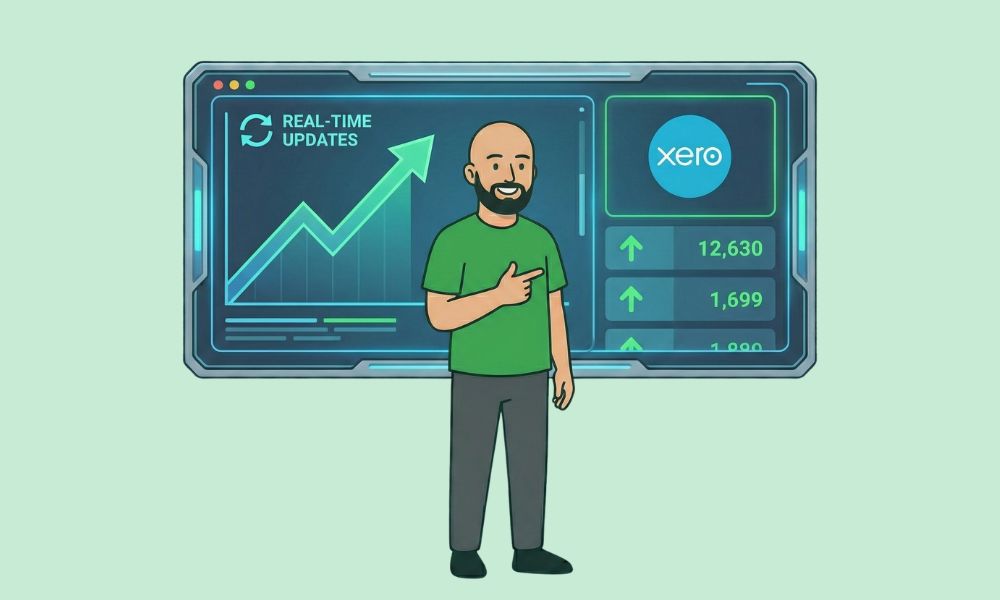
After verification, stop using QuickBooks and run all new activities in Xero. The first two weeks are the testing phase.
Monitor:
- Invoices and payments posting correctly.
- VAT summary values matching expectations.
- Bank feeds updating daily.
- Reports reflecting accurate balances.
If any discrepancy appears, trace it immediately rather than after quarter-end.
Step 8: Back Up Old Data
Even after a successful migration, retain a read-only QuickBooks backup for audit support. Store:
- Previous VAT returns.
- Old invoices and receipts.
- Trial balances for reference.
This ensures compliance if the FTA requests earlier records during inspection.
Step 9: Optimise Post-Migration
After the first full month in Xero, start refining settings.
- Add tracking categories (branch, department, project).
- Customise reports to show cash flow or profit by location.
- Automate payment reminders for overdue clients.
- Create recurring invoices for subscriptions.
Optimisation turns a simple migration into a true upgrade.
Common Migration Mistakes
- Migrating mid-VAT period without closing returns.
- Forgetting to map VAT codes correctly.
- Ignoring currency settings for multi-currency accounts.
- Failing to transfer opening balances accurately.
- Overlooking user access and permissions.
Avoiding these issues ensures a clean transition and reliable reports.
Benefits After Switching to Xero
Once migration is complete, daily accounting becomes faster and more transparent.
- Invoices send instantly with online payments enabled.
- Bank transactions import automatically.
- Reports show real-time profit and cash positions.
- VAT returns generate in minutes instead of hours.
- Corporate tax data stays aligned with ledger balances.
These benefits build over time as staff gain confidence and automation takes over manual tasks.
When to Seek Professional Help
Migration involves more than copying data; it requires VAT mapping, reconciliation, and reporting knowledge. Many businesses save weeks by working with a specialist during setup.
At Alpha Pro Partners, our accountants handle full QuickBooks-to-Xero migrations; from data extraction and VAT mapping to post-migration testing. Get in touch today to move your accounting safely and start using Xero with total confidence.
Frequently Asked Questions
Is migration from QuickBooks to Xero difficult?
No. With clean data and a planned process, it can be completed within a few days.
Will I lose any transactions during migration?
Not if the export and import steps are followed carefully. Historical data remains in QuickBooks for reference.
Can bank feeds be moved automatically?
Feeds cannot transfer directly but can be reconnected in Xero with live credentials.
How does VAT transfer work?
Outstanding VAT balances and codes are recreated in Xero using the final QuickBooks VAT return as reference.
Is multi-currency supported after migration?
Yes. Xero handles multi-currency invoices and bank accounts natively.
Should I migrate mid-year or year-end?
It’s best to switch at the start of a new financial month or quarter for clean balances.
Can past invoices be viewed in Xero?
Only open invoices and bills are imported. Closed items remain in QuickBooks backup for audit purposes.
How long does migration take?
Small businesses usually complete the move within one week after planning and testing.
Will Xero handle corporate tax reports automatically?
Yes. With correct chart of accounts and tracking categories, Xero produces reports ready for corporate tax filing.
Do I need training after migration?
A brief training session is highly recommended to help staff adapt to Xero’s layout and automation tools.
.webp)
%20(1).webp)
.webp)
.webp)
.webp)

























.webp)
.webp)
.webp)
.webp)

.png)
.png)



.png)